> For the complete documentation index, see [llms.txt](https://docs.engagevr.io/engage/llms.txt). Markdown versions of documentation pages are available by appending `.md` to page URLs; this page is available as [Markdown](https://docs.engagevr.io/engage/experience-editor/working-with-objects/ifx/audio-ifx.md).
# Audio IFX
You can use audio IFX to add sounds to your experience. Audio IFX appear on the timeline with a distinct color and icon. Adjust the container for an audio IFX on the timeline to control when it will be audible.

## Audio effect options
For instructions on how to access effect options, see [Effect options](/engage/experience-editor/working-with-objects/effect-options.md). For audio IFX, the effect options provide access to spatial and loop settings.

| Setting | Description |
| --------------------------- | -------------------------------------------------------------------------------------------------------------------------------------------------------------------------------------------------------------------------------------------------------------------------------------------------------------------------------------------------------------------------------------------------------------------------------------------------------------------------------------------------------------------------------------------------------------------------------------------------------------------------------------------------------------------------------------------------------------------------------------------------------------------------------------------------- |
| **2D Audio** | If selected, the audio has an equal volume in all areas of the environment.
To control the volume of the audio, adjust the scale of the IFX. A larger scale creates a louder volume. The volume is represented by a percentage value in the selection bubble of the IFX:

|
| **3D Audio** | If selected, the application simulates the sound as though it were at a specific place in the environment. Where available, the sound will be presented in stereo so that users can determine the direction of the source of the sound.
When users move closer to the sound, the volume will increase. Beyond a specified distance, the sound won't be audible.
To control the area within which the sound is audible, adjust the scale of the IFX. The area within which the sound will be heard is represented by a transparent sphere:
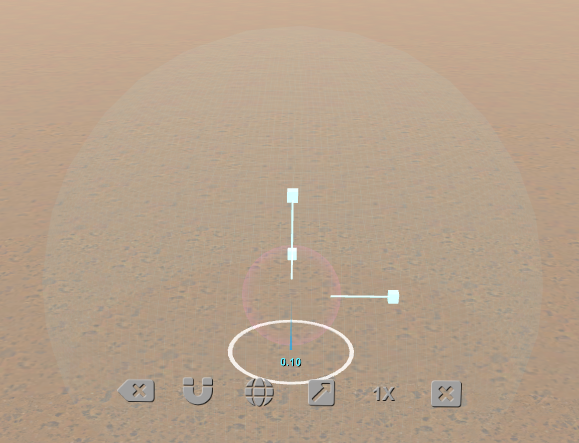
|
| **Loop Audio: Use Default** | Selected by default
When selected, the default rules to determine if a sound should loop are applied. All audio that's more than 7 seconds in length is automatically set to loop. Clear this check box to manually set whether the audio will loop.
|
| **Loop Audio: Loop** | Select this check box to loop the audio for as long as it's active on the timeline. |
---
# Agent Instructions
This documentation is published with GitBook. GitBook is the documentation platform designed so that both humans and AI agents can read, navigate, and reason over technical content effectively. Learn more at gitbook.com.
## Querying This Documentation
If you need additional information that is not directly available in this page, you can query the documentation dynamically by asking a question.
Perform an HTTP GET request on the current page URL with the `ask` query parameter, and the optional `goal` query parameter:
```
GET https://docs.engagevr.io/engage/experience-editor/working-with-objects/ifx/audio-ifx.md?ask=&goal=
```
`ask` is the immediate question: it should be specific, self-contained, and written in natural language.
`goal` is optional and describes the broader end goal you are ultimately trying to accomplish on behalf of the user. GitBook uses it to tailor the answer towards what is most useful for that goal.
The response will contain a direct answer to the question and relevant excerpts and sources from the documentation.
Use this mechanism when the answer is not explicitly present in the current page, you need clarification or additional context, or you want to retrieve related documentation sections.