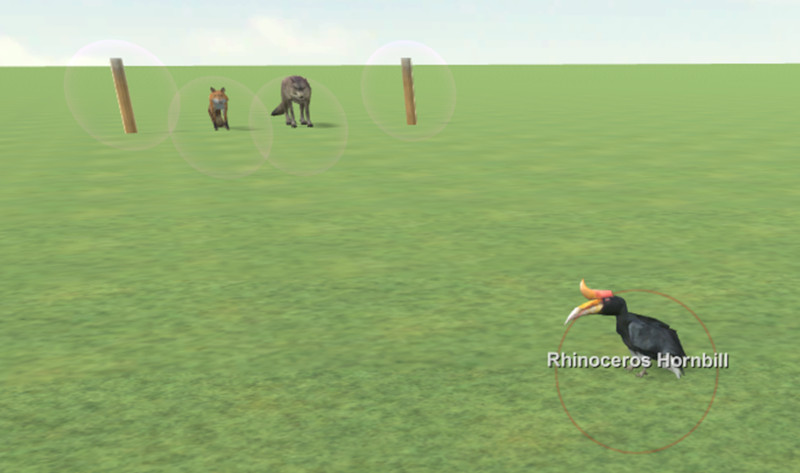
Rhinoceros Hornbill added in the middle of the racetrack
Rhinoceros Hornbill added in the middle of the racetrack
 ).
).
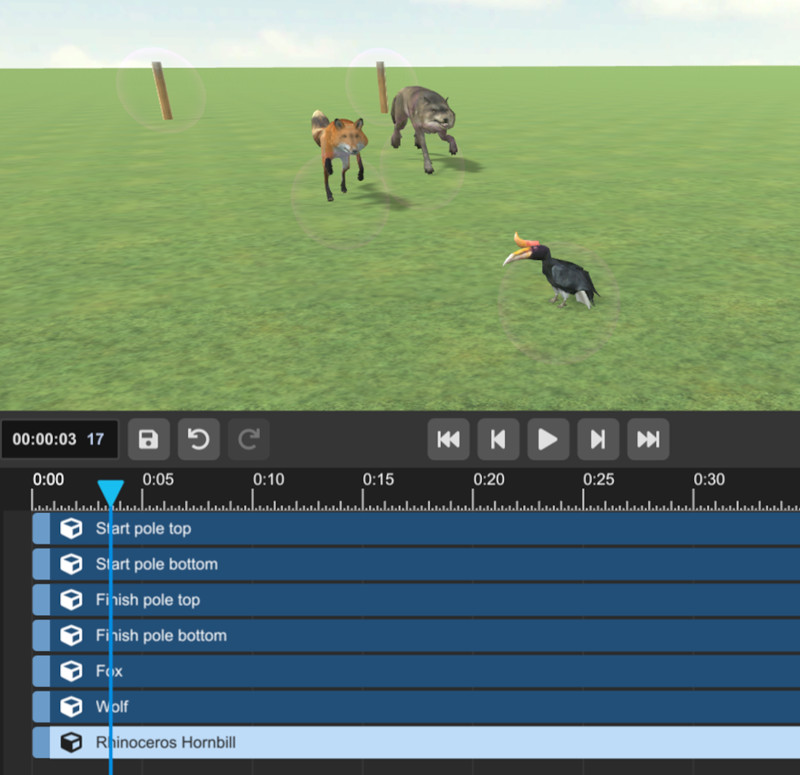
Positions for first frame of the hornbill's animation
 ), and then move the hornbill off to the side of the track in the direction that its facing.
3. Select the create key icon ().
## Create a midpoint key
1. Select the hornbill, and then select the dope sheet view.
2. Position the playhead between the keys in your animation. Ignore the auto-generated keys at 0:00.
3. Select the translate tool (), and then move the hornbill vertically into the air.
4. Select the create key icon ().
Test your animation. If the hornbill moves too early or too late, adjust the timing of the keys. The flight path doesn’t look natural, but we will correct that next.
---
# Agent Instructions
This documentation is published with GitBook. GitBook is the documentation platform designed so that both humans and AI agents can read, navigate, and reason over technical content effectively. Learn more at gitbook.com.
## Querying This Documentation
If you need additional information that is not directly available in this page, you can query the documentation dynamically by asking a question.
Perform an HTTP GET request on the current page URL with the `ask` query parameter, and the optional `goal` query parameter:
```
GET https://docs.engagevr.io/engage/experience-editor/tutorials/introductory-animal-race/add-another-animal.md?ask=
), and then move the hornbill off to the side of the track in the direction that its facing.
3. Select the create key icon ().
## Create a midpoint key
1. Select the hornbill, and then select the dope sheet view.
2. Position the playhead between the keys in your animation. Ignore the auto-generated keys at 0:00.
3. Select the translate tool (), and then move the hornbill vertically into the air.
4. Select the create key icon ().
Test your animation. If the hornbill moves too early or too late, adjust the timing of the keys. The flight path doesn’t look natural, but we will correct that next.
---
# Agent Instructions
This documentation is published with GitBook. GitBook is the documentation platform designed so that both humans and AI agents can read, navigate, and reason over technical content effectively. Learn more at gitbook.com.
## Querying This Documentation
If you need additional information that is not directly available in this page, you can query the documentation dynamically by asking a question.
Perform an HTTP GET request on the current page URL with the `ask` query parameter, and the optional `goal` query parameter:
```
GET https://docs.engagevr.io/engage/experience-editor/tutorials/introductory-animal-race/add-another-animal.md?ask=