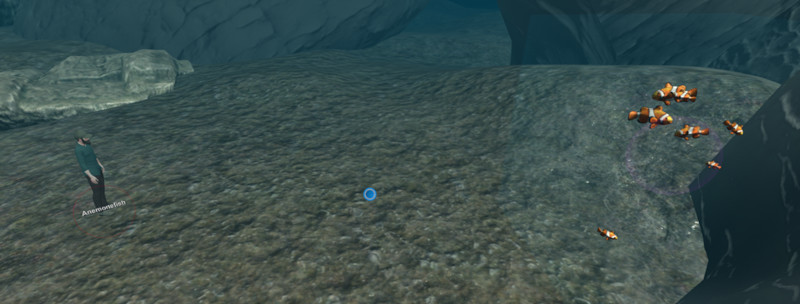
Placement of the fish shoal
 ) until the playhead is in the correct position.
2. Place the clown fish near to the cliff face. This will be behind the user.
3. On the timeline, extend the container for the clown fish to be the same length as the container for the recording.
4. Select the cog for the clown fish container.
5. On the **Current Effect Options** page, in the **FISH SCHOOL** section, select **Create a Fish School**.
6. Set **Fish Quantity** to `7`, **Fish Scale (Min)** to `0.5`, and **Fish Scale (Max)** to `2`.
7. Select **SAVE EFFECT**.
) until the playhead is in the correct position.
2. Place the clown fish near to the cliff face. This will be behind the user.
3. On the timeline, extend the container for the clown fish to be the same length as the container for the recording.
4. Select the cog for the clown fish container.
5. On the **Current Effect Options** page, in the **FISH SCHOOL** section, select **Create a Fish School**.
6. Set **Fish Quantity** to `7`, **Fish Scale (Min)** to `0.5`, and **Fish Scale (Max)** to `2`.
7. Select **SAVE EFFECT**.
Placement of the fish shoal
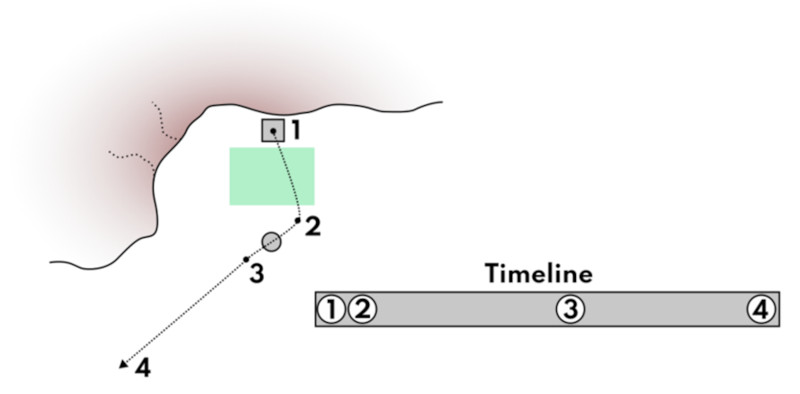
 ) to mark the start position.
2. Move the playhead forward a few seconds, move the clown fish IFX in front of the user's position, and then create a new key. This ensures that they fish quickly come into view.
3. Move the playhead approximately halfway along the clown fish IFX container, move the clown fish IFX behind the recorded avatar, and then create a new key. This ensures that the clown fish are visible for most of the recording.
4. Move the playhead to the end of the clown fish IFX container, move the close fish IFX into the distance until it's obscured by the fog, and then create a new key. The fish will swim towards this point and hopefully fade into the murky distance before they disappear from the timeline.
) to mark the start position.
2. Move the playhead forward a few seconds, move the clown fish IFX in front of the user's position, and then create a new key. This ensures that they fish quickly come into view.
3. Move the playhead approximately halfway along the clown fish IFX container, move the clown fish IFX behind the recorded avatar, and then create a new key. This ensures that the clown fish are visible for most of the recording.
4. Move the playhead to the end of the clown fish IFX container, move the close fish IFX into the distance until it's obscured by the fog, and then create a new key. The fish will swim towards this point and hopefully fade into the murky distance before they disappear from the timeline.
Animation path